Multi-step escalation chains
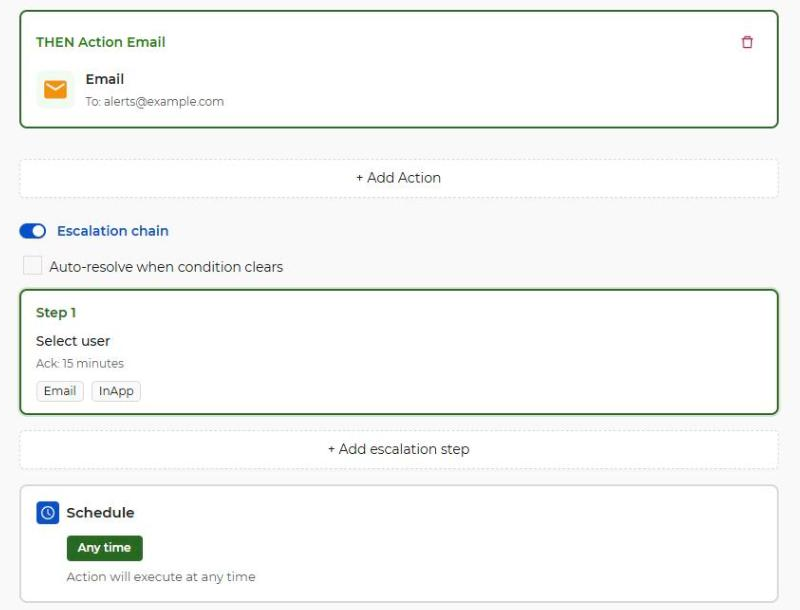
Add as many steps as you need: on-duty engineer first, then the team lead, then the facility manager. Each step names a user and an acknowledgement window (default 15 minutes).
An alert nobody reads is the same as no alert. Widgelix assigns every critical alarm to a person, waits for acknowledgement, and escalates to the next person if the deadline passes, until the incident is handled and resolved.
A freezer warms up on Saturday night, a leak sensor fires in an empty building, a pump fails at a remote site. The notification goes to a shared inbox or a channel everyone assumes someone else is watching. By Monday the damage is done, and nobody can say who saw the alert.
Turn on the escalation chain on any action. When the condition is met, Widgelix logs the event and opens an incident assigned to the first step.
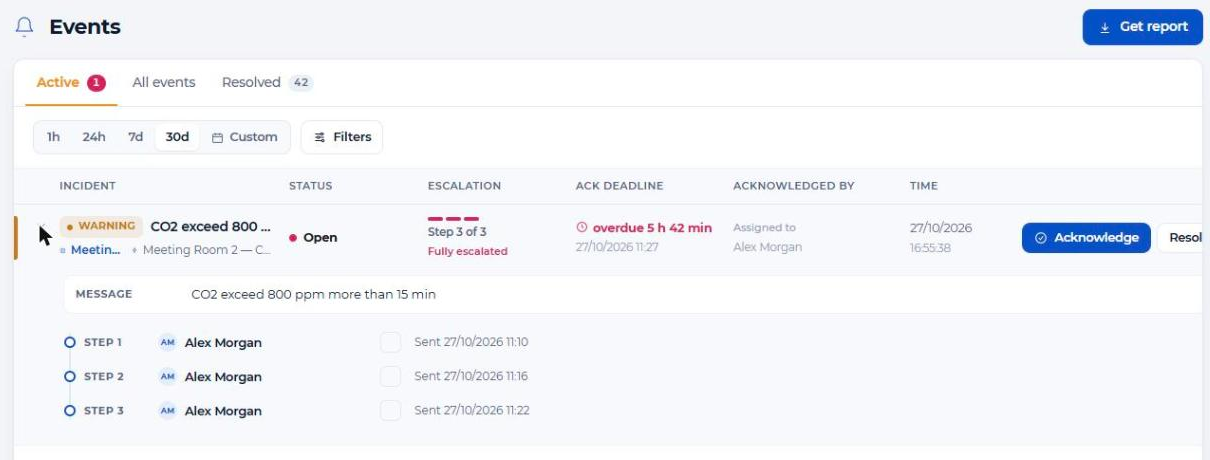
The assigned user is notified by email and in-app pop-up, plus any SMS, Slack, Discord or webhook channels you add. If nobody acknowledges before the deadline, the next step is notified.
Acknowledging stops escalation and assigns the incident. It stays open until someone resolves it, or closes automatically when the condition clears if auto-resolve is on.
No separate paging tool required for most teams, and it works with SIGNL4 when you already use one.
Add as many steps as you need: on-duty engineer first, then the team lead, then the facility manager. Each step names a user and an acknowledgement window (default 15 minutes).
Email and in-app notification are added by default. Add SMS, Slack, Discord or webhook per step, so the second step can be louder than the first.
Acknowledge from the in-app pop-up or from the Events page. The incident is assigned to you and escalation stops immediately.
When the temperature is back to normal or the leak sensor is dry, the incident can close itself, so the active list only shows what still needs attention.
The Active tab shows severity, asset, current step (“Step 2 of 3”), time left to acknowledge or how long it is overdue, and who owns it.
The Resolved tab and each incident's timeline show who was notified at every step and when, and who took ownership. Use it for post-incident reviews and to evidence response times.
Escalation runs in addition to the action's regular responses: the Slack message still goes out, and the chain makes sure one person owns the alarm.
| Steps | Multiple steps per action, one assigned user each |
|---|---|
| Acknowledge window | Seconds, minutes or hours per step (default 15 min) |
| Channels per step | Email, in-app, SMS, Slack, Discord, Webhook |
| Incident states | Open, acknowledged (assigned), fully escalated, resolved |
| Closing | Manual resolve or auto-resolve when the condition clears |
| Views | Active, All events and Resolved tabs with filters and time ranges |
| Paging tools | Native SIGNL4 action for teams that already use it |
When the acknowledgement window of a step ends, the incident moves to the next step and its recipients are notified. After the last step the incident is marked fully escalated and stays on the Active tab until resolved.
No. Acknowledging stops escalation and assigns the incident to you. It stays open until someone clicks Resolve, or until the condition clears if auto-resolve is enabled.
Many teams don't: escalation with SMS, Slack and email is built in. If you already run SIGNL4, Widgelix can raise alerts there directly, and webhooks connect other tools.
Yes. Each incident has a timeline with every step, who was notified and when, and the Resolved tab shows who acknowledged it.
Yes. Through the Widgelix MCP server an agent can list, analyse, acknowledge and resolve incidents within the permissions of the connected user.
Tell us which alarms matter most and who should respond. We'll show you an escalation setup for your team.